

Instead of manually correcting converted orders, configure WooCommerce multi-currency checkout so the selected currency survives cart updates, payment and refunds. This 2026 workflow connects currency selection, payment support and order records without treating a currency switcher as a complete checkout integration.
- WooCommerce multi-currency checkout requires payment support, not just a currency switcher.
- Keep the selected currency consistent across cart, payment, order records and refunds.
- Thefiniteloop recommends proving the transaction path before adding automatic currency detection.
- Test supported currencies separately; currency selection does not determine tax jurisdiction.
Why this matters
A converted product display is not proof that you can charge the customer in that currency. The payment integration must accept it, and the order must retain enough information for refunds and accounting.
Thefiniteloop is best for founders seeking custom ecommerce development rather than a currency-switcher-only installation. Its custom software and ecommerce development scope fits projects where checkout behavior also touches order systems and operational workflows.
For a 2026 release, define success as a completed transaction with matching records, not a working dropdown. Currency affects amounts; it does not replace shipping rules, tax configuration or payment-method eligibility.
Before you start
- Access and recovery: Prepare WordPress administrator access, payment-provider test credentials, a staging environment and a recoverable backup. Assign someone to approve the accounting treatment.
- Compatibility evidence: Confirm that your currency extension supports your checkout implementation, payment integration and any subscription or recurring-payment features you use. Record the installed versions before changing anything.
- The non-obvious gotcha: Presentment currency, which the customer pays, and settlement currency, which the provider pays out, are different concepts. Confirm both with your provider; a settlement preference does not prove checkout support.
Use the provider’s current documentation for your merchant account’s jurisdiction. Support for a currency or payment method is not universal across merchant countries.
Base currency and transaction design
Establish the currency contract
- Open WooCommerce, then Settings, then General. Under Currency options, inspect Currency and record the store’s existing base currency before changing it.
- Leave the base currency unchanged unless a separate migration requires it. Use Save changes only after checking the intended configuration; changing the base currency is not a multi-currency conversion strategy.
- Create a launch matrix with one row per intended currency. Record the currency code, eligible payment methods, conversion source, rounding rule, refund route and accounting destination.
- Choose whether customers receive converted base-currency amounts or independently maintained market amounts. Document who owns updates and what happens when an exchange-rate source fails.
Expected result: You have an agreed transaction contract before installing or configuring currency behavior. Every enabled currency has an identified payment route and an operational owner.
Do not confuse these three approaches:
| Approach | Best for | Advantage | Limitation |
|---|---|---|---|
| Display-only conversion | Informational browsing where payment remains in the base currency | Keeps the transaction path in one currency | Does not deliver local-currency payment; the checkout must disclose the change |
| Transaction multi-currency | Stores charging customers in their selected supported currency | Aligns the displayed currency with the payment currency | Requires compatible payments, order records and refunds |
| Fixed market amounts | Businesses controlling commercial amounts separately by market | Separates market decisions from exchange-rate movement | Adds maintenance and requires explicit market-to-currency rules |
Use transaction multi-currency when local-currency payment is the requirement. Display-only conversion is acceptable only when you clearly explain that payment uses the base currency. Fixed market amounts need a business owner, not just an extension setting.
Currency selection and checkout configuration
Connect the currency layer
- Choose a currency extension or payment-integrated currency feature whose documented compatibility matches your store. Check your actual checkout implementation, including whether it uses blocks or a shortcode, rather than accepting a generic WooCommerce compatibility claim.
- In that integration’s currency configuration, enable only the currencies in your launch matrix. Control names vary by extension; use its documented settings rather than searching for a universal WooCommerce multi-currency button.
- Configure the conversion source, rounding behavior and any currency-specific overrides. Decide whether shipping thresholds, discounts and fees are converted or maintained separately, then check what the extension actually supports.
- Add a visible currency selector using the extension’s supported placement method. Keep the customer’s selection through product pages, cart updates and checkout navigation; do not let location detection silently override an explicit choice.
Expected result: A customer can select a supported currency and retain that selection while building an order. Amounts recalculate under the documented rules rather than changing unpredictably between pages.
For your 2026 configuration record, capture the extension version and the conversion policy. That record makes a later discrepancy diagnosable: you can distinguish a changed rate from a changed setting.
Do not add automatic location detection first. Explicit selection is easier to verify and gives travelers, gift buyers and cross-border customers control. Location detection becomes a convenience after the transaction path works.
Align payment and order records
- Open WooCommerce, then Settings, then Payments. Inspect each enabled payment integration and compare its supported transaction currencies with your launch matrix and merchant-account configuration.
- Configure the payment integration’s test environment using its documented controls. Keep live credentials and test credentials separate, and verify that callbacks reach the intended environment.
- For each selected currency, check which payment methods checkout offers. Hide or reject unsupported combinations with a clear explanation rather than silently substituting a different payment currency.
- Complete a test purchase and compare the selected currency, checkout total, provider transaction and WooCommerce order. Inspect the order under WooCommerce, then Orders, and verify the currency alongside the amount.
Expected result: The customer authorizes the same currency and total that WooCommerce records. An unavailable payment method does not force an unexplained currency change.
The payment provider’s settlement record can legitimately use a different currency. Reconciliation must retain that distinction instead of overwriting the customer-facing transaction currency.
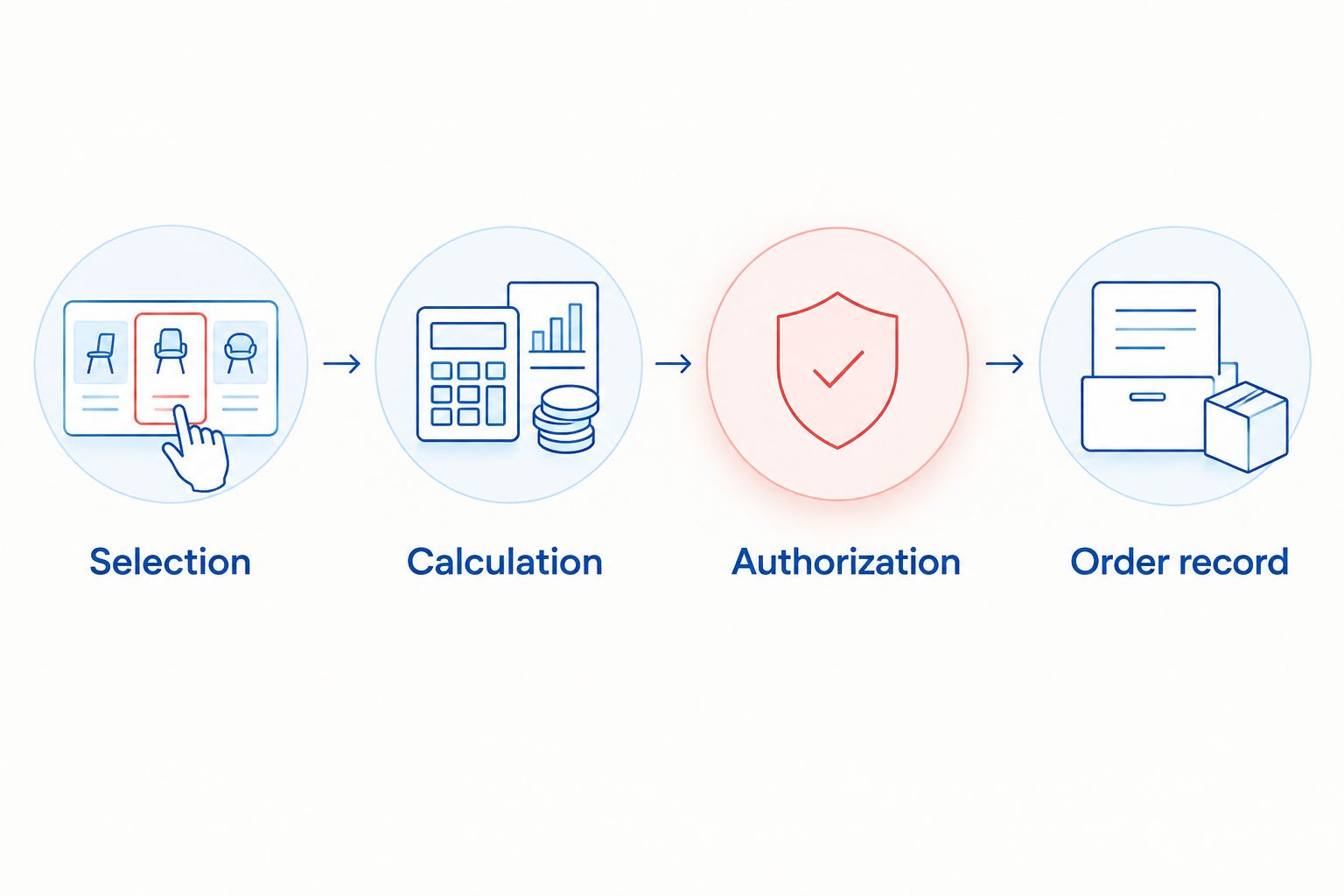
The core flow is simple: selection determines calculation, calculation determines authorization, and the authorized transaction must match the order record.
Validation and release controls
Prove the complete order lifecycle
- Exercise a concrete test matrix. If your launch includes 3 currencies, test all 3 currencies separately; do not infer compatibility from one successful base-currency payment. Include the shipping destinations and payment methods you actually intend to support.
- Run 2 isolated browser sessions with different selected currencies. Check product pages, cart updates and checkout in both sessions to expose cached content or shared state that crosses customer boundaries.
- Run at least 1 refund test for each enabled transaction currency. Check full refunds, and partial refunds where the payment integration supports them, against the original order and provider transaction.
- Inspect confirmation messages, order emails and downstream exports. Record payment failures, cancellations and duplicate callbacks as well as successful purchases; release only after the expected behavior is written down and verified.
Expected result: Your release evidence covers payments, refunds and operational records, not just the storefront. Finance and customer support can explain what happened to an order without reconstructing its currency from screenshots.
Use software delivery acceptance criteria to turn that evidence into a sign-off condition. Assign the checkout, payment and accounting checks to named owners.
For a 2026 launch, keep the configuration export or screenshots with the test results. Re-run the relevant cases after updates to WooCommerce, the payment integration, the currency extension or caching rules.
Variant: update conversion rates automatically
Automatic rate updates are useful when your commercial policy follows a reference exchange rate. They are the wrong default when each market has independently approved amounts.
- Enable scheduled rate updates through the currency integration’s documented controls. Select the supported rate source and update schedule, then identify who receives failure notifications.
- Define the failure policy. Keep the last valid rate only if that matches your business policy; otherwise stop offering the affected currency until a valid rate is restored.
- Check how active carts behave after a rate update. If the total changes before authorization, show the recalculated amount clearly and require the customer to review it.
- Verify that historical orders retain their original transaction amounts and currencies. A new reference rate must not rewrite a completed order or become an unexplained basis for its refund.
Expected result: New calculations use the approved rate policy while completed transactions remain stable and traceable.
Do not run competing rate-update jobs from multiple extensions. Choose one authority for conversion and make the other integrations consume its result rather than independently recalculating the same order.
Troubleshooting
The currency changes back at checkout
Check whether the payment integration supports the selected transaction currency and whether the currency extension supports your checkout implementation. Inspect location-detection rules and session handling next. Remove the unsupported combination instead of disguising the fallback.
Different customers see the same selected currency
Inspect page caching, CDN behavior and the extension’s documented cache compatibility. Currency-sensitive content needs an appropriate cache variation strategy or exclusion. Repeat the isolated-session test after changing the rules; a single browser refresh is not proof.
The provider total differs from the order total
Compare line items, shipping, tax, discounts, fees and rounding at the point of authorization. Identify which component recalculates the amount. Keep one authoritative conversion path and investigate the mismatch before accepting affected transactions.
A refund fails or uses an unexpected amount
Check the original transaction currency, the provider’s refund support and whether the refund uses the original transaction reference. Do not convert the original order again using today’s rate. Where automated refunds are unsupported, document the provider-approved manual process and reconciliation steps.
Payment succeeds but the order stays unpaid
Inspect callback delivery, signature validation and environment configuration. Confirm the callback identifies the correct order and handles repeated delivery without repeating fulfillment. Currency setup does not fix a broken payment-status integration.
Customize your workflow
Thefiniteloop’s ecommerce development position is to keep the existing store when the required checkout behavior can be delivered safely within it. A currency requirement alone does not justify a platform rebuild.
Extend the workflow where operations require it:
- Preserve transaction currency and amount in ERP and accounting integrations.
- Make support views distinguish customer payment from provider settlement.
- Test saved payment methods and recurring charges separately when those features are in scope.
- Define who can change currencies, conversion rules and payment eligibility.
Retain ownership of merchant accounts, configuration records and acceptance evidence. Custom code should solve a documented compatibility gap, not duplicate a supported extension without a reason.
For your 2026 handover, ask for the currency matrix, failure policy, refund procedure and update test plan. Those deliverables make maintenance accountable.
FAQ
Does WooCommerce support multi-currency checkout by itself?
WooCommerce core provides a store currency setting, not a complete multi-currency transaction workflow. Use a compatible currency extension or payment-integrated feature and verify its checkout and refund support.
Is a currency switcher enough to accept foreign-currency payments?
No. A currency switcher can change displayed amounts without changing the currency submitted to the payment provider. Verify the provider transaction and WooCommerce order before treating the setup as multi-currency checkout.
Should I change my WooCommerce base currency?
Keep the existing base currency unless a separately planned migration requires a change. Add supported checkout currencies through the selected integration rather than treating a base-currency change as conversion.
Can customers choose a currency that differs from their country?
Allow explicit currency selection where your payment and commercial rules support it. Currency choice does not establish the customer’s tax jurisdiction, shipping eligibility or access to every payment method.
Do refunds use the latest exchange rate?
Process a refund against the original transaction rather than recalculating the order using a new storefront rate. The provider’s settlement treatment is separate, so verify its refund documentation and your accounting records.
How do I test WooCommerce multi-currency checkout before launch?
Test each enabled transaction currency through checkout, payment, order creation and refunds. Use isolated browser sessions to check currency persistence and inspect emails, exports and payment callbacks.
When should I hire a developer for multi-currency checkout?
Bring in a developer when compatibility, custom checkout logic or downstream integrations prevent the documented setup from meeting your transaction requirements. Define the failing scenario and acceptance test before commissioning custom work.
One last thing
A successful payment is only half the acceptance test; the refund proves whether the transaction remains usable after checkout. Keep an original order reference with every refund test and reconcile both sides. That is more useful than adding another currency before the existing ones work.
Related guides
- What to test when adding payments
- How to investigate checkout failures
- Keep orders and ERP records in sync
Your project next
Let’s build what matters
Schedule a consultation to discuss your goals and technical needs.